


Mobile networking in Sculpt
Last year, ssumpf added basic LTE modem support to Genode. Since many Sculpt-compatible laptops come with integrated LTE modems already or can be easily upgraded, I started a little side project to equip Sculpt with easy-to-deploy mobile networking support. In this article, I summarise how to reap the fruits of this project. As a side effect, it showcases the varied possibilities of component compositions.
For structuring this article, I split it in three sections. The first section covers the recommended usage scenario. The second section goes a bit more into detail by describing a more minimalistic setup. Last not least, the last section is targeted at experienced users and developers who want to get some background information for troubleshooting.
The average user (who just wants to use it)
The all-in-one solution is provided in form of a mobile_network package, which comprises all necessary ingredients. You find a deployable package in my personal depot or you can build your own from genode-world.
Before installing mobile_network though, you should look up the vendor id and product id of your modem. You find the list of connected USB devices in /report/usb/devices. Here is an excerpt of this file on my ThinkPad T490s:
 devices
 + device usb-3-13 | class: 0xef | manufacturer: FIBOCOM | product: L830-EB | vendor_id: 0x2cb7 | product_id: 0x210 | speed: high
   + config | active: yes | value: 0x1
     + interface | active: yes | number: 0x0 | info: Fibocom L830-EB | alt_setting: 0x0 | class: 0x2 | subclass: 0xe | protocol: 0
       + endpoint | address: 0x81 | attributes: 0x3 | max_packet_size: 0x40
     + interface | active: no | number: 0x1 | alt_setting: 0x1 | class: 0xa | subclass: 0x0 | protocol: 0x2
       + endpoint | address: 0x82 | attributes: 0x2 | max_packet_size: 0x200
       + endpoint | address: 0x2  | attributes: 0x2 | max_packet_size: 0x200
     + interface | active: yes | number: 0x1 | info: Data (OFF) | alt_setting: 0x0 | class: 0xa | subclass: 0x0 | protocol: 0x2
     + interface | active: yes | number: 0x2 | info: Fibocom L830-EB | alt_setting: 0x0 | class: 0x2 | subclass: 0x2 | protocol: 0
       + endpoint | address: 0x83 | attributes: 0x3 | max_packet_size: 0x40
     + interface | active: yes | number: 0x3 | info: Data | alt_setting: 0x0 | class: 0xa | subclass: 0x0 | protocol: 0x0
       + endpoint | address: 0x84 | attributes: 0x2 | max_packet_size: 0x200
       + endpoint | address: 0x4  | attributes: 0x2 | max_packet_size: 0x200
 [...]
What I’m looking for is a device entry with an interface of class: 0x2, which is the device class for communication devices. The FIBOCOM L830-EB device sounds just right. Let's memorise its vendor_id/product_id of 0x2cb7/0x210 and add the following policy to /model/child/usb in order to assign the device to mobile_network:
 + policy | label_prefix: mobile_network ->
   + device | vendor_id: 0x2cb7 | product_id: 0x0210
With this preparation, you are ready to install the mobile_network package. On deployment, as usual, you will be asked for some routing decisions. Connect network to network. (If it is not available, open the Network dialogue in your Leitzentrale and choose "Local".) For the File system service, I recommend using recall_fs and for Report, choose "report".
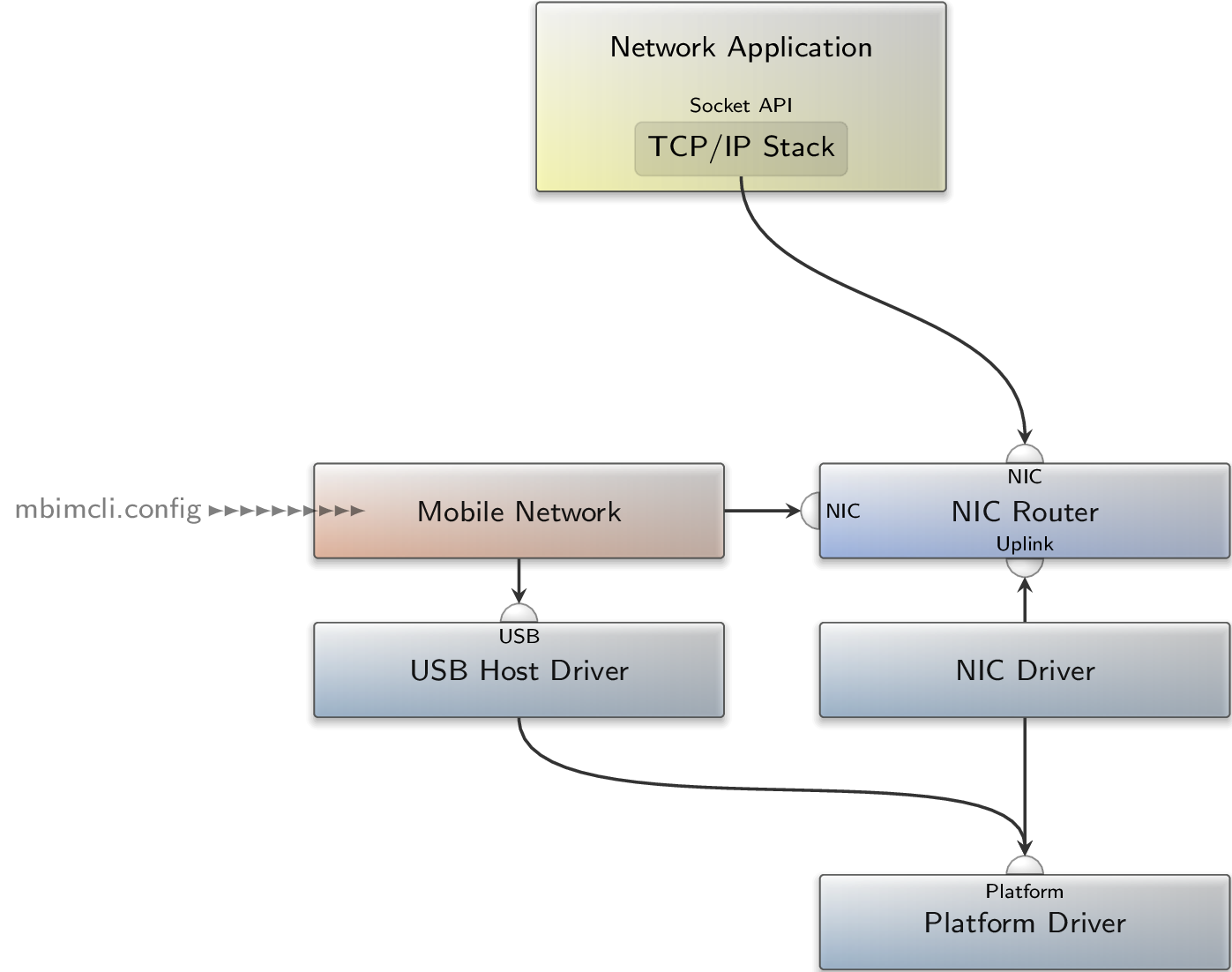
The following figure illustrates the (simplified) integration of this package in Sculpt. The package connects to the USB Host Driver and the NIC Router (network). Moreover, the File_system service (not depicted) is required in order to provide the mbimcli.config.
|
|
Integration of the mobile_network package in Sculpt.
|
Wait a minute! Why does the package need a Nic session at all when it is supposed to provide network access? Counterintuitively, the Nic session actually serves as an uplink, i.e. to provide the nic_router with network access. (I'll provide more details in the last section of this article.)
The first start of the package will not be successful because it needs to be configured with the correct APN and PIN settings. Yet, the package writes a default config to the provided file system if it does not exist. Let's thus have a look at recall_fs/mobile_network/config/mbimcli.config:
 config | nic_client_enable: yes
 + network
           apn:      internet.eplus.de
           user:     eplus
           password: eplus
           pin:      XXXX
 + default-domain
                  interface: 10.0.3.1/24
                  ip_first:  10.0.3.2
                  ip_last:   10.0.3.200
 + vfs
   + dir dev
   | + log
   | + inline rtc
   | | : 2020-08-05 00:01
   | + dir pipe
   | | + pipe
   | + terminal cdc-wdm0 | raw: yes
   + ram
 + libc | stdout: /dev/log | stderr: /dev/log | rtc: /dev/rtc | pipe: /dev/pipe
 -
At the moment, we only care about the network node. Here, you must at least enter the correct APN for your provider (the search engine of your choice might help) and the PIN code for your SIM card. Unused attributes can be removed.
Having set your credentials, you can restart mobile_network and glance at the log.
 [mobile_network -> usb_net] SLUB: HWalign=64, Order=0-1, MinObjects=0, CPUs=1, Nodes=1
 [mobile_network -> usb_net] clocksource: dde_counter: mask: 0xffffffffffffff max_cycles: 0x1d854df40, max_idle_ns: 3526361
 [mobile_network -> usb_net] clocksource: jiffies: mask: 0xffffffff max_cycles: 0xffffffff, max_idle_ns: 7645041785100000 ns
 [mobile_network -> usb_net] usbcore: registered new interface driver usbfs
 [mobile_network -> usb_net] usbcore: registered new interface driver hub
 [mobile_network -> usb_net] usbcore: registered new device driver usb
 [mobile_network -> usb_net] clocksource: Switched to clocksource dde_counter
 [mobile_network -> usb_net] usbcore: registered new interface driver asix
 [mobile_network -> usb_net] usbcore: registered new interface driver ax88179_178a
 [mobile_network -> usb_net] usbcore: registered new interface driver cdc_ether
 [mobile_network -> usb_net] usbcore: registered new interface driver cdc_ncm
 [mobile_network -> usb_net] usbcore: registered new interface driver qmi_wwan
 [mobile_network -> usb_net] usbcore: registered new interface driver cdc_mbim
 [mobile_network -> usb_net] usbcore: registered new interface driver cdc_wdm
 [mobile_network -> usb_net] usbcore: registered new interface driver option
 [mobile_network -> usb_net] usb_serial: USB Serial support registered for GSM modem (1-port)
 [mobile_network -> usb_net] sched_clock: Marking stable (0, 2291000)->(3239000, -948000)
 [mobile_network -> usb_net] cdc_mbim 0-0:1.0: setting rx_max = 16384
 [mobile_network -> usb_net] cdc_mbim 0-0:1.0: 0-0:1.0: USB WDM device
 [mobile_network -> usb_net] cdc_mbim 0-0:1.0 wwan0: register 'cdc_mbim' at usb-usbbus-0, CDC MBIM, 62:ce:c7:93:3e:37
 [mobile_network -> usb_net] create uplink for net device wwan0
 [mobile_network -> mbimcli] Warning: pthread_set_name_np: pthread_set_name_np not implemented
 [mobile_network -> mbimcli] Warning: pthread_set_name_np: pthread_set_name_np not implemented
 [mobile_network -> mbimcli] Warning: pthread_set_name_np: pthread_set_name_np not implemented
 [mobile_network -> mbimcli] Warning: Lost network registration
 [mobile_network -> mbimcli] Successfully attached packet service
 [mobile_network -> mbimcli] ip     : 10.70.16.229/16
 [mobile_network -> mbimcli] gateway: 10.70.16.1
 [mobile_network -> mbimcli] dns0   : 61.8.132.52
 [mobile_network -> mbimcli] dns1   : 192.168.246.67
 [network] [default] NIC sessions: 2
 [mobile_network -> nic_router] [uplink] static IP config: interface 10.70.16.229/16, gateway 10.70.16.1, P2P 0
 [mobile_network -> nic_router] [uplink] NIC sessions: 0
 [mobile_network -> nic_router] [downlink] static IP config: interface 10.0.2.1/24, gateway 0.0.0.0, P2P 0
 [mobile_network -> nic_router] [downlink] NIC sessions: 0
 [mobile_network -> nic_router] [default] static IP config: interface 10.0.3.1/24, gateway 0.0.0.0, P2P 0
 [mobile_network -> nic_router] [default] NIC sessions: 0
 [mobile_network -> nic_router] [downlink] NIC sessions: 1
 [mobile_network -> nic_router] [uplink] NIC sessions: 1
Alright, what happened here? Apparently, the mobile_network package deploys a usb_net, an mbimcli component and its own nic_router. In this section, we don’t care about the details and only take note of the fact that we got an IPv4 address from our network provider as logged by mbimcli. The last missing piece is hidden in the following message:
[runtime -> nic_router] [default] NIC sessions: 2
The experienced user might already have a clue: The mobile_network was assigned to the default domain of our central NIC Router ("network"), yet, as indicated in the figure by the two separate NIC interfaces of the NIC Router, we wanted to use mobile_network as a (secondary) uplink to which the traffic from the default domain is forwarded.
In order to achieve this, you need to add a few lines to /model/child/network:
 + policy | label_prefix: mobile_network -> | domain: mobile_uplink
 + domain mobile_uplink
   + nat | domain: default | tcp-ports: 1000 | udp-ports: 1000 | icmp-ids: 1000
This adds a new domain "mobile_uplink" and the corresponding rule to assign the session request from mobile_network to this domain. Note, that you can keep an already existing "uplink" domain that is typically used for wired/wireless network uplinks. The network component automatically adapts to the modified config file and should acknowledge your changes with the following line, which indicates the correct assignment to the new domain:
[network] [mobile_uplink] NIC sessions: 1
Now, you can control whether to forward your default-domain traffic to "mobile_uplink" instead of "uplink" simply by changing the default-domain config as follows:
 + domain default | interface: 10.0.1.1/24
   + dhcp-server | ip_first: 10.0.1.2 | ip_last: 10.0.1.200 | dns_config_from: mobile_uplink
   + tcp  | dst: 0.0.0.0/0 | + permit-any | domain: mobile_uplink
   + udp  | dst: 0.0.0.0/0 | + permit-any | domain: mobile_uplink
   + icmp | dst: 0.0.0.0/0 | domain: mobile_uplink
Done. With this solution, you can switch between mobile and wired/wireless networking by changing the forwarding rules in /model/child/network. There is no need to stop mobile_network. Don’t worry if you cannot visualise yet how the mobile_network package integrates into Sculpt and how it cooperates with the central network component. I’ll shed some light on this in the last section.
The minimalist (who wants a stripped down solution)
If you are not keen on maintaining your own _/model/child/network', I have another, more minimalistic, deployment option for you. If you occasionally want to provide a single application (or a small subset) with mobile connectivity, this option might be more sensible. You may have already noticed a special attribute in the default mbimcli.config:
config | nic_client_enable: yes
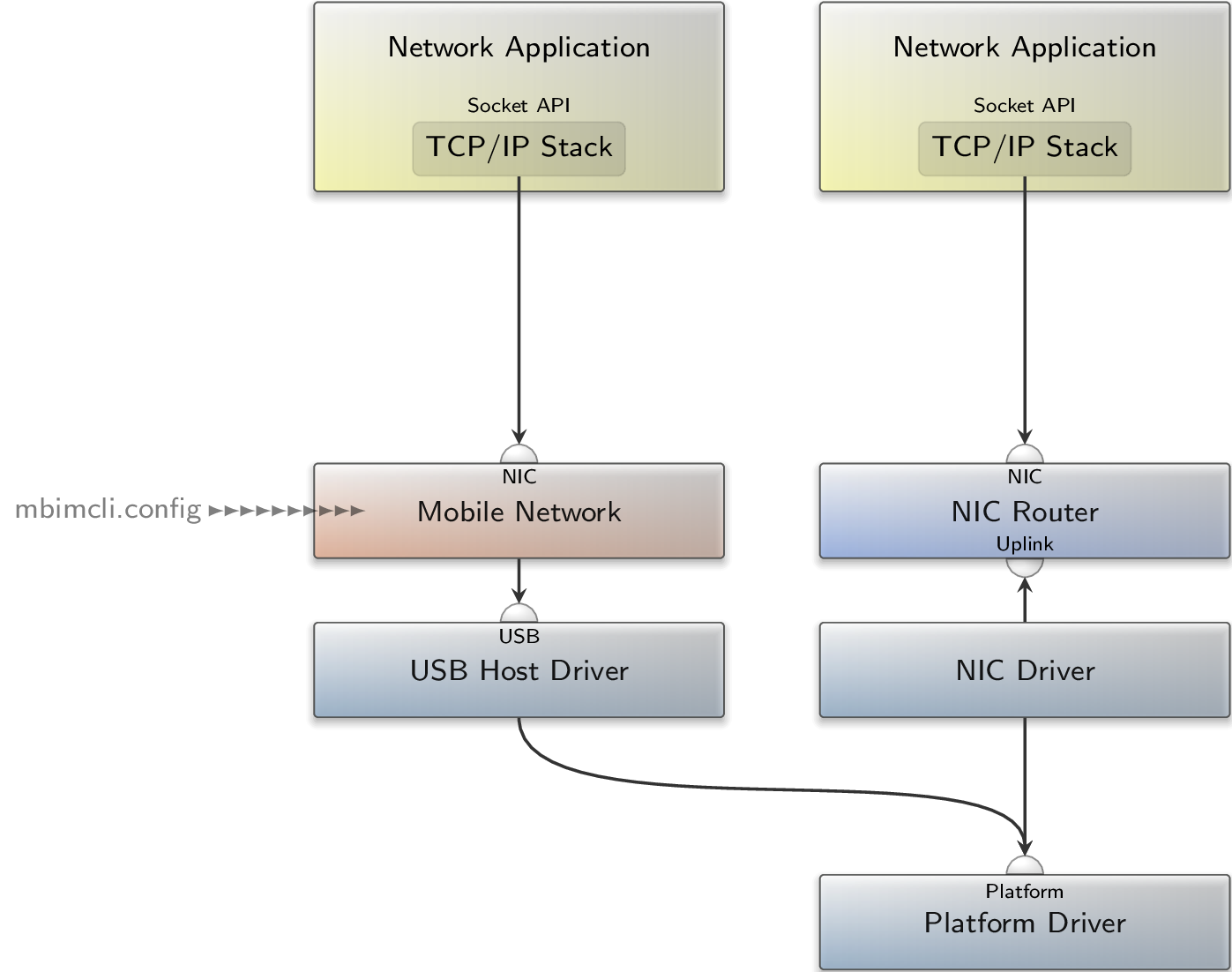
When setting the nic_client_enable attribute to no, the package will not request a NIC session anymore and solely act as a NIC server as shown in the figure below. You can therefore route network requests from any other component to the mobile_network component rather than to Sculpt's network component.
|
|
Integration of the mobile_network package in Sculpt with nic_client_enable: no
|
The developer (who wants to know all details)
In the previous sections, I intentionally focused on describing the usage and omitted the details on the internals of the mobile_network package. As promised, I am going to convey the missing pieces in this last section.
|
|
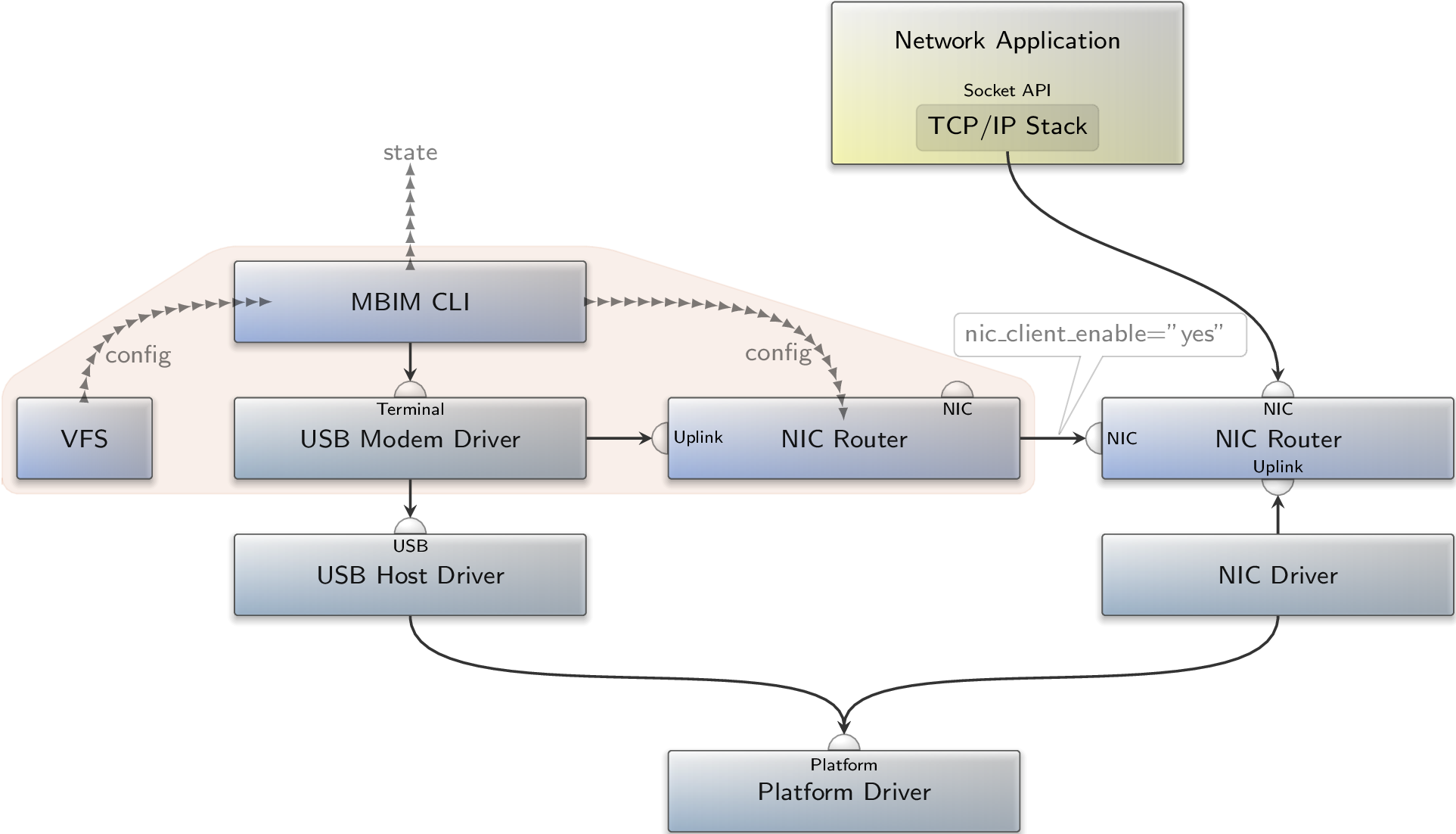
Detailed integration of the mobile_network package in Sculpt.
|
The figure shows the integration of the multi-component mobile_network package in Sculpt. The main ingredients of the package are the USB Modem Driver (usb_net), MBIM CLI, a VFS and a NIC Router. The modem driver connects to the USB service provided by the USB Host Driver and provides a Terminal service. The latter is used by MBIM CLI to interact with the modem. MBIM CLI gets its config from a file system via the VFS component. Note, that I omitted the intermediate fs_rom component in the figure. When a mobile network connection could be established, MBIM CLI generates and reports a config for the internal NIC Router, which is stored in the used file system and may look like this:
 config | verbose: no | verbose_packets: no | verbose_domain_state: yes | verbose_packet_drop: no
 + default-policy | domain: default
 + policy | label_prefix: usb_net | domain: uplink
 + domain uplink | interface: 10.70.16.229/16 | gateway: 10.70.16.1 | use_arp: no
   + nat | domain: default | tcp-ports: 1000 | udp-ports: 1000 | icmp-ids: 1000
   + nat | domain: downlink | tcp-ports: 1000 | udp-ports: 1000 | icmp-ids: 1000
+ nic-client | domain: downlink
 + domain downlink | interface: 10.0.2.1/24
   + dhcp-server | ip_first: 10.0.2.2 | ip_last: 10.0.2.3
     + dns-server | ip: 61.8.132.52
     + dns-server | ip: 192.168.246.67
   + tcp | dst: 0.0.0.0/0
     + permit-any | domain: uplink
   + udp | dst: 0.0.0.0/0
     + permit-any | domain: uplink
   + icmp | dst: 0.0.0.0/0 | domain: uplink
 + domain default | interface: 10.0.3.1/24
   + dhcp-server | ip_first: 10.0.3.2 | ip_last: 10.0.3.2
     + dns-server | ip: 61.8.132.52
     + dns-server | ip: 192.168.246.67
   + tcp | dst: 0.0.0.0/0
     + permit-any | domain: uplink
   + udp | dst: 0.0.0.0/0
     + permit-any | domain: uplink
   + icmp | dst: 0.0.0.0/0 | domain: uplink
 -
It configures three domains: uplink, downlink and default. The uplink domain is assigned to the USB Modem Driver, which connects to the Uplink service. As usual, every NIC client that connects to the NIC Router is assigned to the default domain. The third domain, downlink, is assigned to the NIC client session that the NIC Router requests itself. This is hidden behind the line + uplink | domain: downlink. As you can see, both domains, downlink and default, have a similar configuration. TCP, UDP and ICMP packets from both domains are forwarded to the uplink domain where they are NATed.
Since the internal NIC Router requests a NIC session, it can be cascaded with Sculpt's NIC Router ("network"). By adapting /model/child/network as mentioned in the first section of this article, we can treat the opened NIC session by mobile_network's NIC Router like an uplink session.
The figure also shows that MBIM CLI generates a state report. When routed to "reports", you will find this report at /report/mobile_network/state. It provides further details on the SIM status, network registration, and connection settings, e.g.:
 state
 + device | sim: initialized
 + network | error: none | registered: home | provider: 1&1 | data_class: lte | roaming:
 + signal | rssi_dbm: -113 | rsrq_db: -11.50 | rsrp_dbm: -118 | rssnr_db: 8.0
 -
The state report helps identify any connectivity issues. E.g. if you see a + device | sim: device-locked, you probably used a wrong PIN.
On rare occasions, when restarting mobile_network multiple times, I got the modem into a state where mbimcli could not open the device any more and failed with a timeout. To leave this state, I had to reboot the laptop.
Note, that hotplugging the SIM card does not work properly. If you see a + device | sim: sim-not-inserted state but are sure that your SIM card is inserted, try rebooting your laptop.
Edit 2026-05-04: Updated instructions for Sculpt 26.04